

Install Orbitr and turn on notifications
Add Orbitr to your computer or phone so it opens like any other app, then turn on notifications so messages, reviews and approvals reach you even when it's closed. It takes about a minute, and there's nothing to download from an app store.
The browser and phone screens are illustrations; your own may look slightly different depending on your version.
On a computer (Mac or PC)
Use Google Chrome or Microsoft Edge.
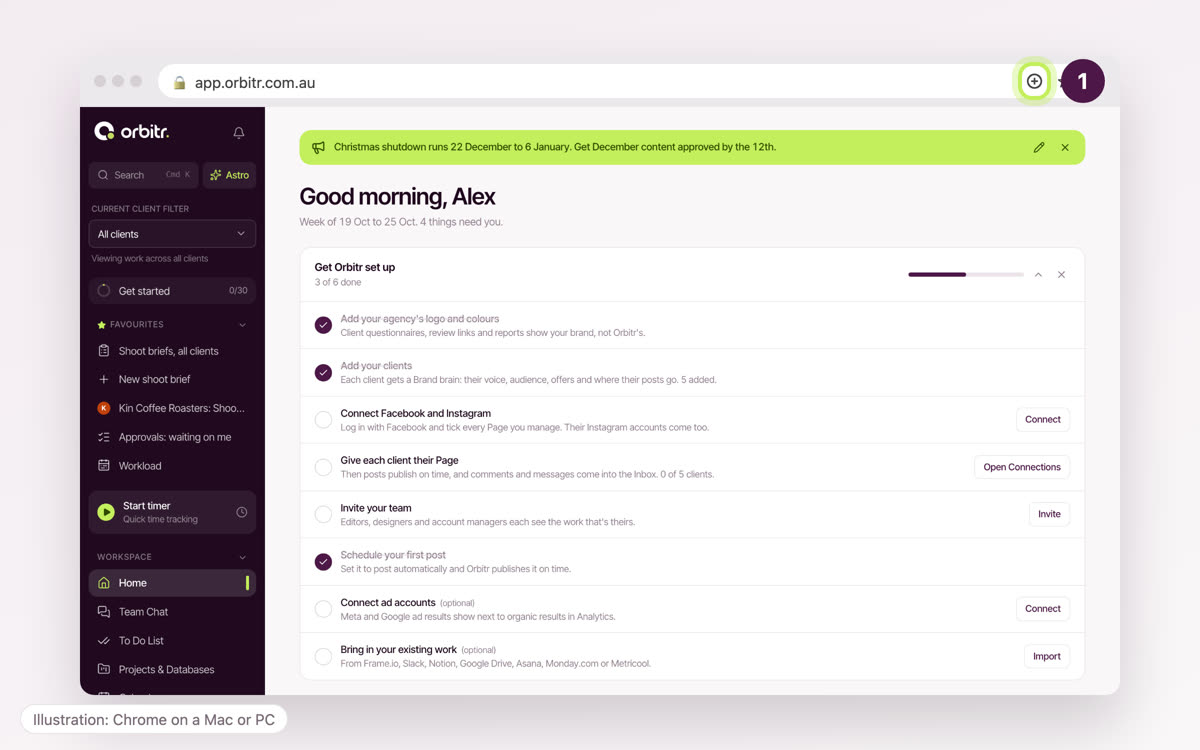
- 1Open app.orbitr.com.au and sign in. Click the install icon at the right of the address bar. No icon? Open the ⋮ menu, then Cast, save and share, then Install page as app.
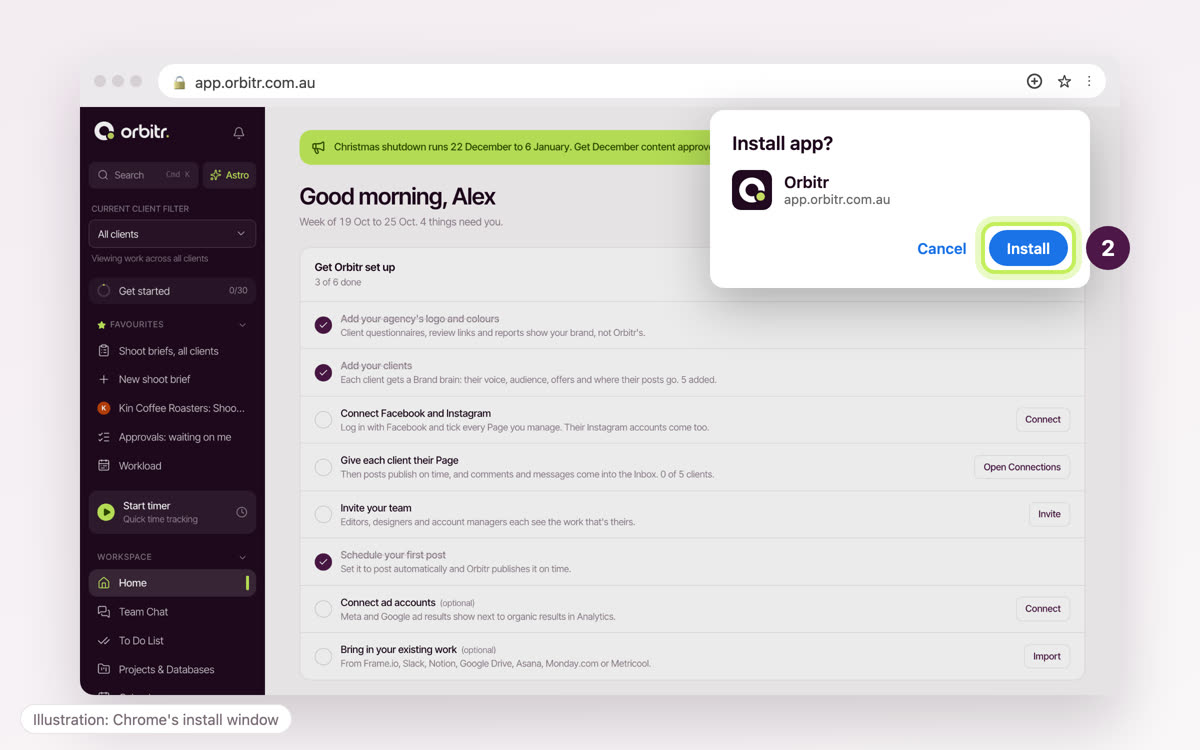
- 2Click Install.
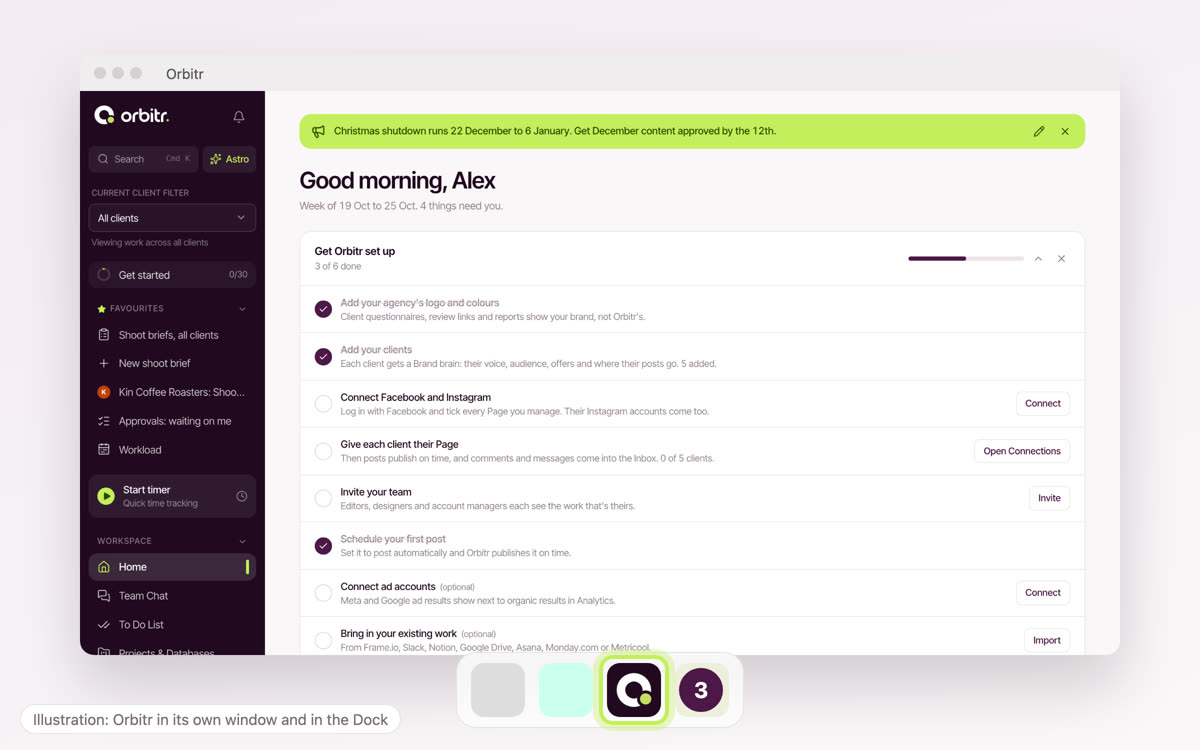
- 3Orbitr opens in its own window. Right-click its icon in the Dock (Mac) or the taskbar (PC) and choose Keep in Dock or Pin to taskbar so it's always one click away.
On an iPhone or iPad
Use Chrome or Safari, whichever you normally use. On iPhone, notifications only work once Orbitr is on your Home Screen (iOS 16.4 or later).
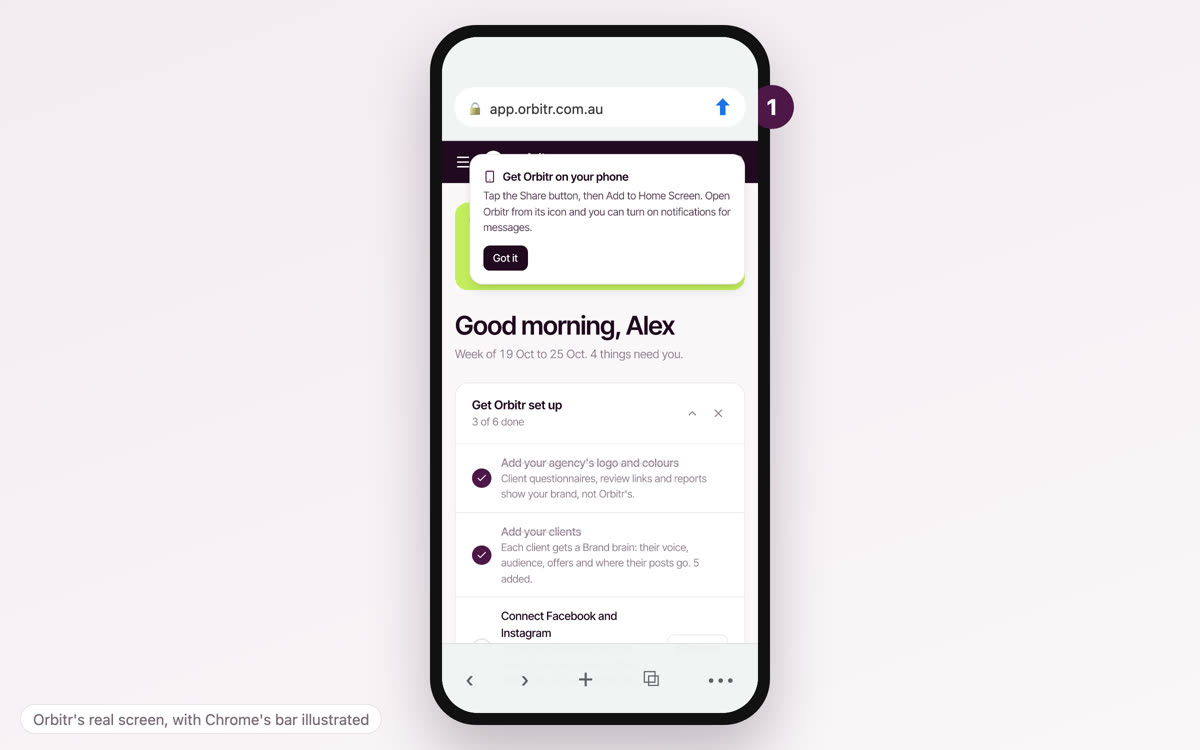
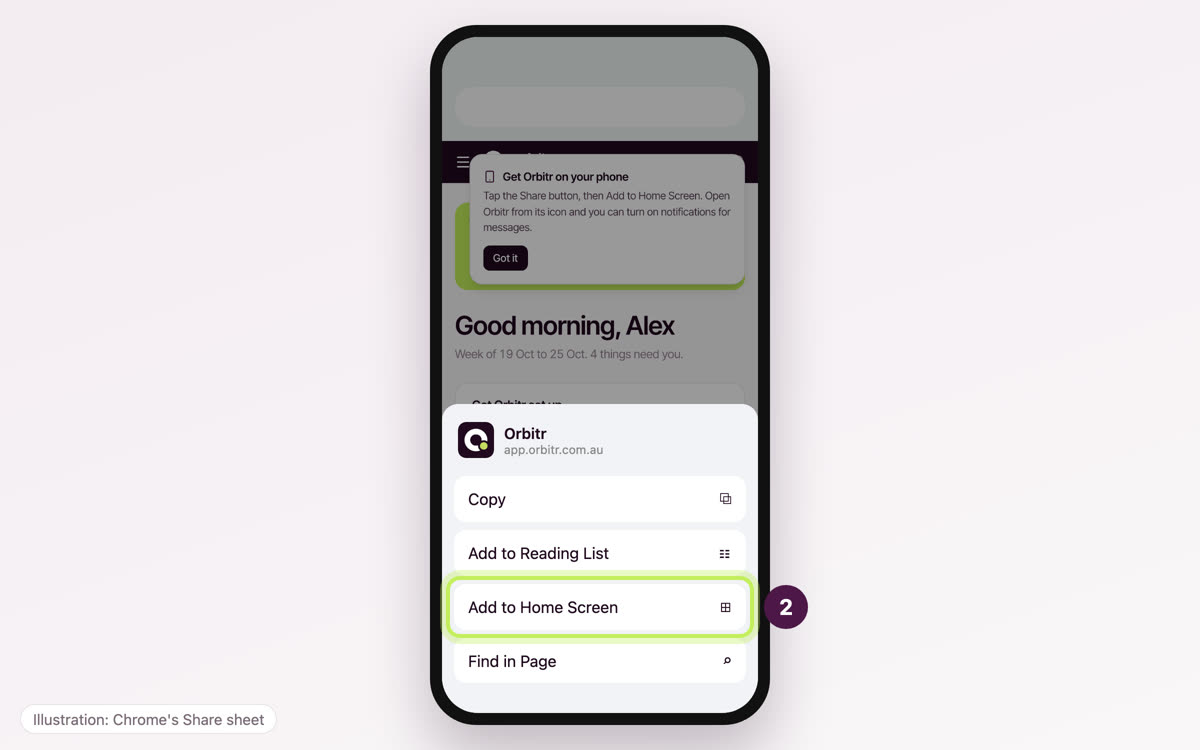
- 1Open app.orbitr.com.au in Chrome and sign in. Tap Share at the right of the address bar. No Share button? Tap •••, then Share.
- 2Scroll down and tap Add to Home Screen, then Add.
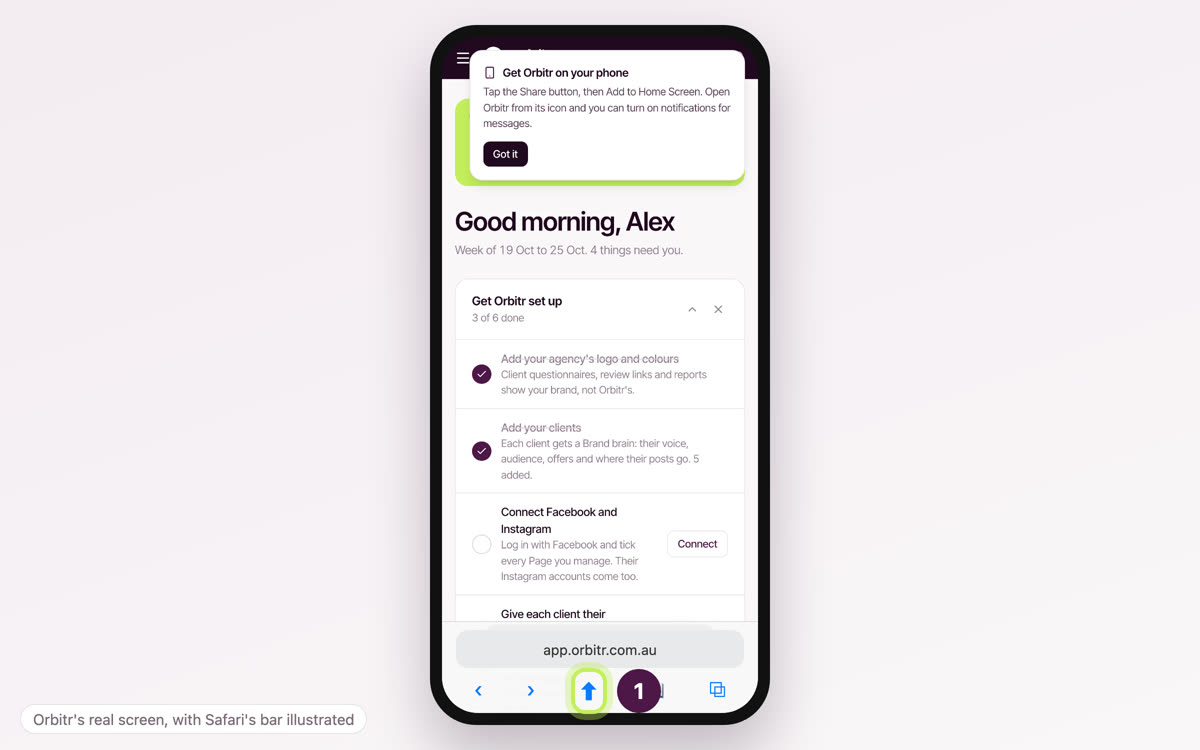
- 1Open app.orbitr.com.au in Safari and sign in. Tap the Share button (the square with an arrow). On newer iPhones, tap ••• first, then Share.
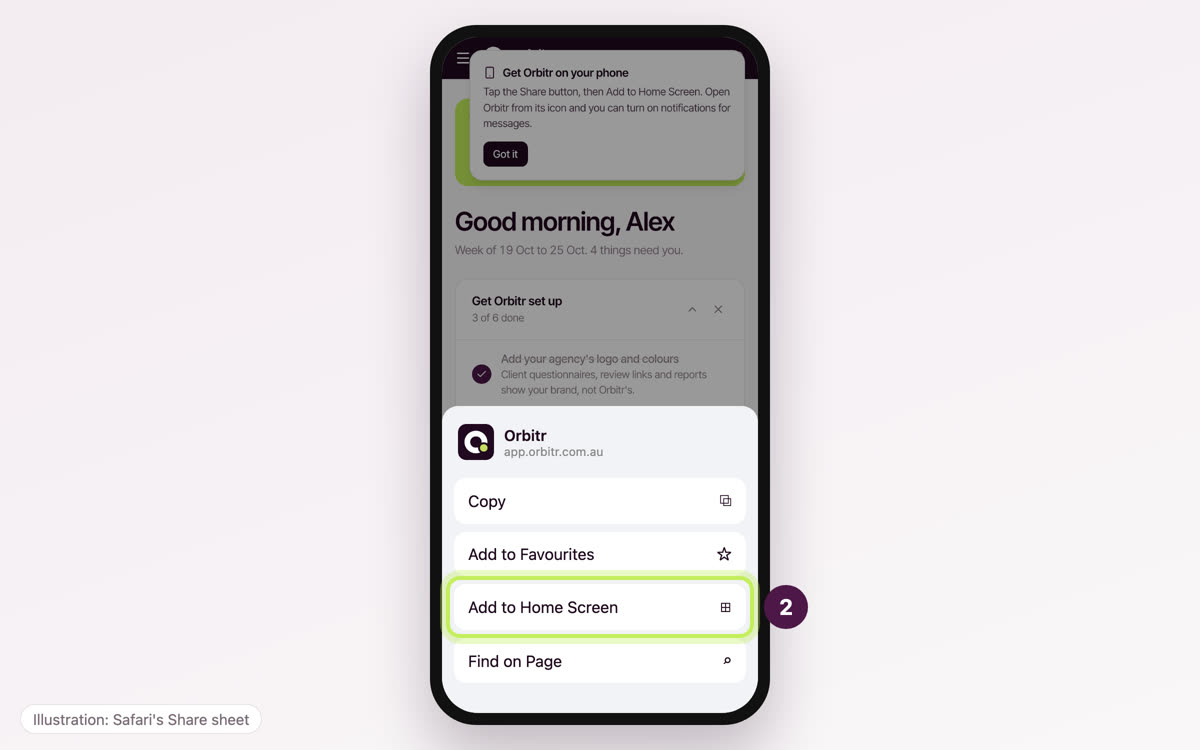
- 2Scroll down and tap Add to Home Screen, then Add.
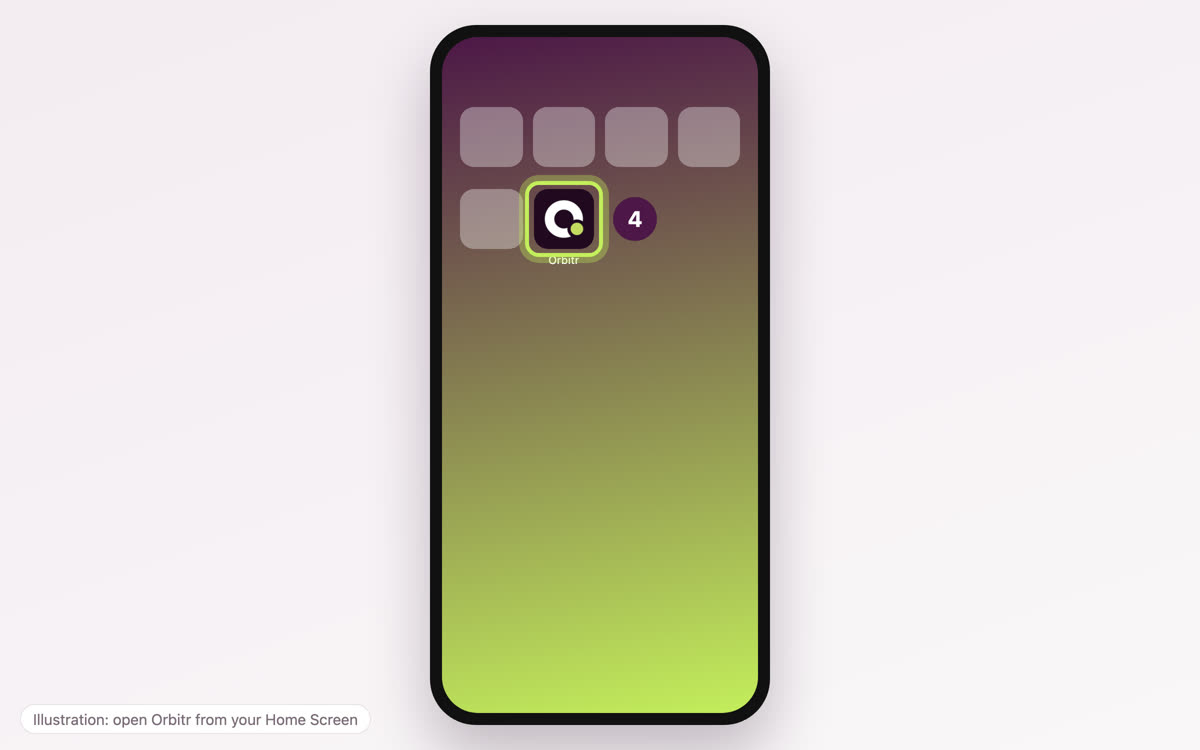
- 3Open Orbitr from its new icon on your Home Screen (not from Chrome or Safari), then turn on notifications (below).
In Chrome
In Safari
Then
On an Android phone
Use Chrome.
- 1Open app.orbitr.com.au in Chrome and sign in. Tap the ⋮ menu, then Add to Home screen (some phones say Install app).
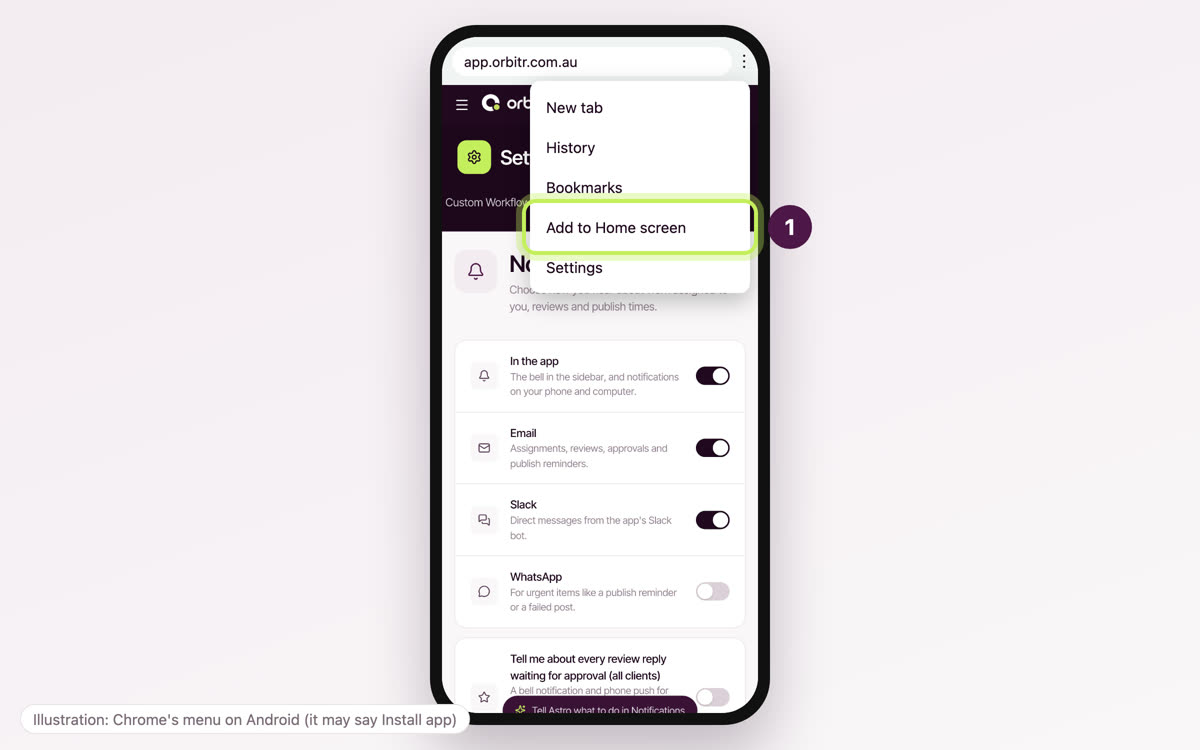
- 2Tap Install. Orbitr appears on your home screen and in your apps.
Turn on notifications
Do this once on each computer and phone you use.
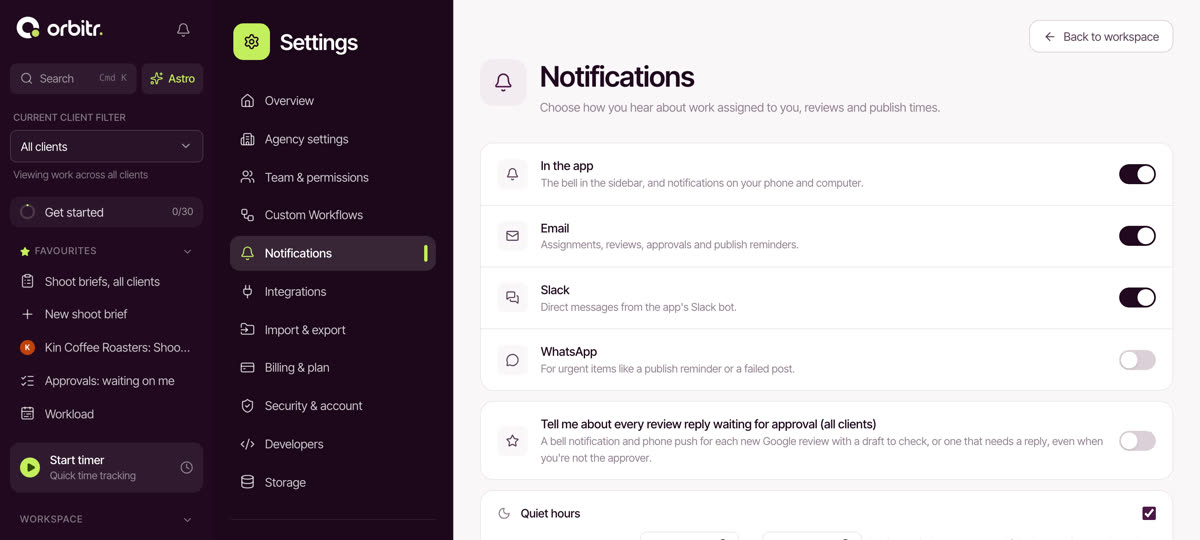
- 1In Orbitr, open Settings, then Notifications. Choose how you hear about work: in the app, email, Slack or WhatsApp.
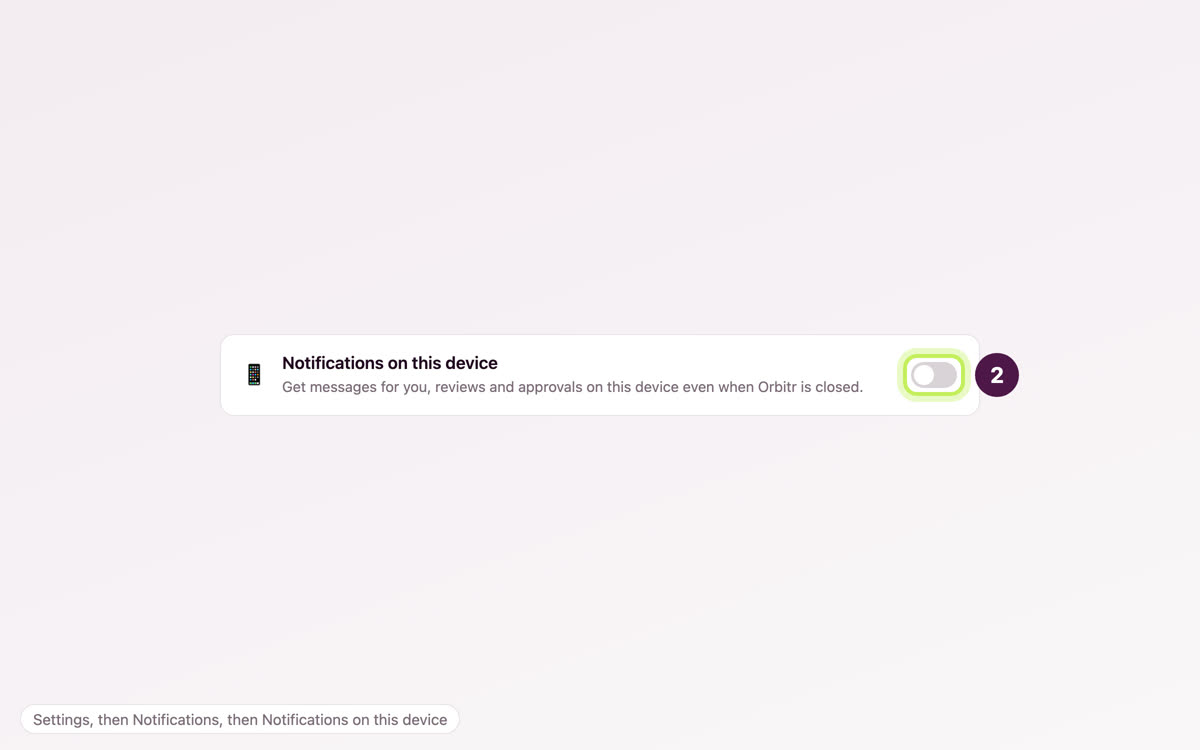
- 2Turn on Notifications on this device.
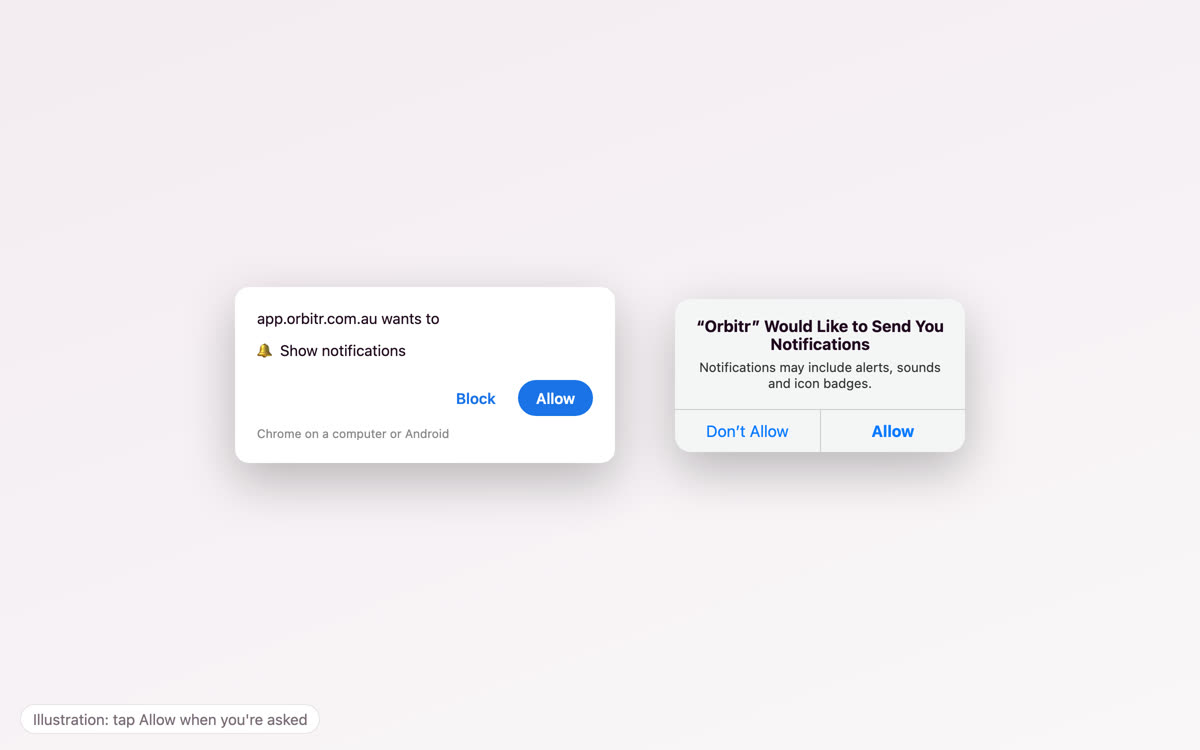
- 3When your browser or phone asks, tap Allow. Then tap Send a test notification to check it works.
If notifications don't arrive
- 1iPhone: make sure you opened Orbitr from the Home Screen icon, not from Chrome or Safari. Then open your iPhone's Settings, then Notifications, then Orbitr, and turn on Allow Notifications.
- 2Chrome: click the icon at the left of the address bar, then Site settings, and set Notifications to Allow. On a Mac, also check System Settings, then Notifications, then Google Chrome.
- 3Quiet hours: if you set quiet hours in Orbitr's Notifications settings, alerts wait until they end.
Prefer to watch? The Install Orbitr and turn on notifications video in Get started shows the same steps in 45 seconds.